ONLINE FAQ
GENERAL
Q: What should I do if the browser is accidentally closed or the network disconnects when the survey is still in progress?
A: Your survey responses are captured when you click on the "Continue" button. If you have yet to submit the survey due to the above reasons, you would need to log in again by clicking on this link to complete the survey and submit your responses.
Q: What should I do if the browser freezes or does not respond while the survey is in progress?
A: Your survey responses are captured when you click on the "Continue" button. If the survey does not reload itself, you may close the browser and log in again by clicking on this link to complete the survey and submit your responses.
Q: How do I proceed when the error message "Page not found" appears?
A: Please close the browser and access the survey again by clicking on this link or entering the URL below:
https://go.gov.sg/moecesurvey2026
If this still does not work, try again on another browser, PC or mobile device.
If the problem still persists, please contact the Activeo Helpdesk (Hotline: (65) 6276-6791 – further details below) for assistance and inform your school afterwards.
Q: Can I lend my device to my classmate to do the survey?
A: Yes, if you need to lend your device to another classmate, do ensure the following:
a. First student:
i. After completing the survey, click the "Submit" button to save and submit all your responses.
ii. Close the browser.
b. Second student:
i. Start a new browser session by scanning the QR code in his or her instruction sheet; or open a new browser session and key in the survey website address: https://go.gov.sg/moecesurvey2026. Second student should see the survey homepage with the Form ID and Password fields blank as shown below:
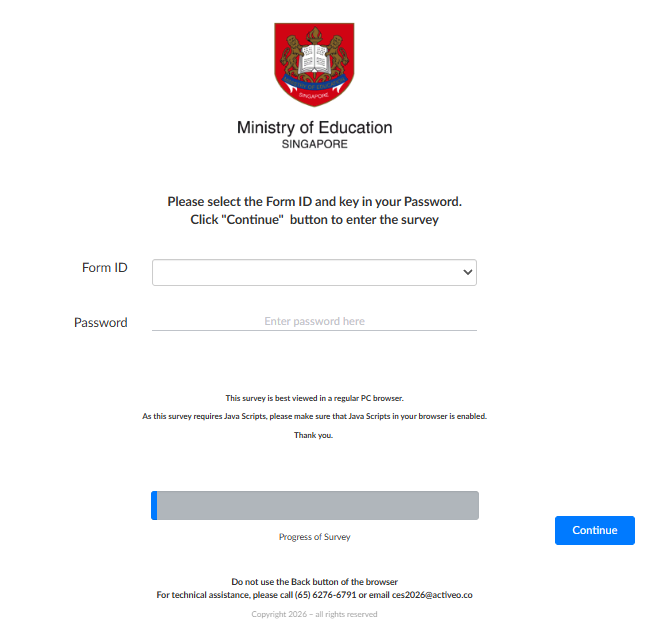
ii. Select the Form ID and key in the Password found in his or her instruction sheet, then click on the "Continue" button to go to the next page.
DISPLAY ISSUES
Q: What should I do if some of the questions appear to flicker or keep resizing?
A: Please go to the browser settings where you can adjust the zoom settings.
Adjust the zoom to different factors (e.g., 90%, 100%, 110%) and see if the problem goes away.
If this still does not work, try to access the survey on another browser, PC or mobile device.
If the problem still persists on another PC or mobile device, please contact the Activeo Helpdesk (Hotline: (65) 6276-6791) for assistance and inform your school afterwards.
CONTACT PERSON FOR TECHNICAL QUERIES
Activeo Helpdesk
Hotline: (65) 6276-6791
Email: ces2026@activeo.co
Available from Monday to Friday, 0900–1800 hours